 Position and normal discontinuities are created, modified and removed in the same way
The system tends to build a model as smooth as possible. As the position discontinuity needed to be treated separatly from normal zones, normal discontinuity need also. Through a normal discontinuity, the surface remains continuous, but there is no dependancy between the local slope of the two parts, in the direction orthogonal to the discontinuity :
Adding a normal discontinuity is locally equivalent with bending the grid, like a sheet of paper, along the segment.
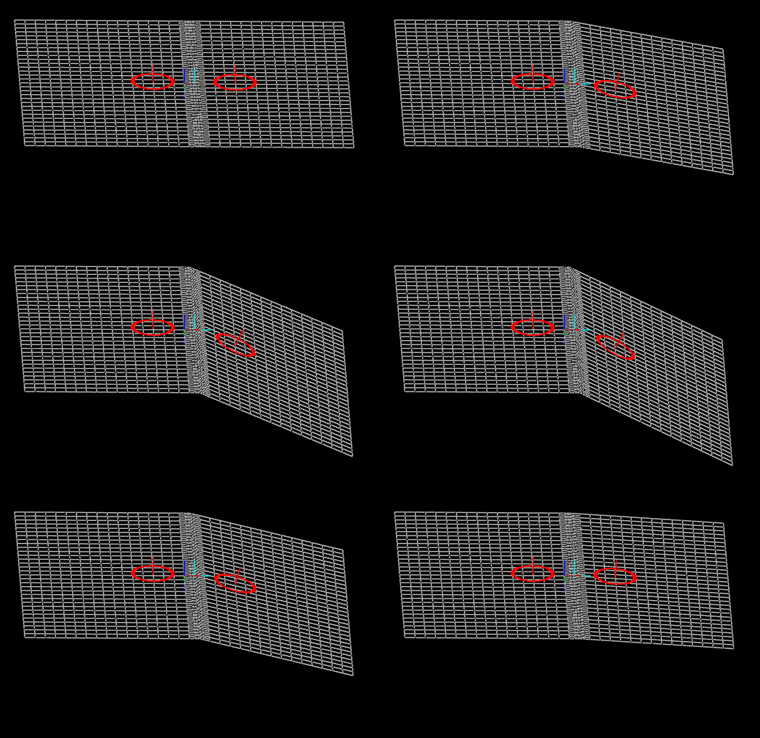 How does normal discontinuity work ? This time, we cannot get rid of cells, since the surface is continuous. The only think that can be done is remove some smoothness along the discontinuity – see Technical explanations for more details.
Position and normal discontinuities are created, modified and removed in the same way
 |
To set a normal discontinuity, switch to the New Mode and select the Normal discontinuity option. The curve you can currently draw are only piece-wise linear curve : just click on each point you want to set on the left side of the window. While you are creating those points, the discontinuity is not dynamically included in the solver : you have to end the curve to validate it. |
|
To end the curve, press Enter : this will add the last point at the current mouse position and end the curve. |
|
While trying to end the curve, if you move the cursor over the first point of the same curve, the latter will be highlighted : if you press enter while highlighted, you will create a closed curve. In the future version, this will be simplified. |
|
To move a normal discontinuity, just click on the point to select it, then drag it to move it. |
|
To delete some key points in the curve, click on the point to select it, then press Backspace to remove it |
|
To remove the whole curve, select it and press Delete. |
  |
WARNING : You have the possibility to stop the solver before moving around the normal discontinuities. I don't advise you to do so : if you modify or add some constraints before releasing the solver, the system will crash !!! |